> ## Documentation Index
> Fetch the complete documentation index at: https://wb-21fd5541-serverless-sft-revamp.mintlify.site/llms.txt
> Use this file to discover all available pages before exploring further.
# UI ガイド
> Web インターフェースから W&B Inference Models にアクセスする
Web UI を通じて W\&B Inference サービスを使用する方法について説明します。UI を使用する前に、[前提条件](/inference/prerequisites/) を完了してください。
## Inference サービスへのアクセス
Inference サービスには、以下の 3 つの場所からアクセスできます。
### ダイレクトリンク
[https://wandb.ai/inference](https://wandb.ai/inference) にアクセスしてください。
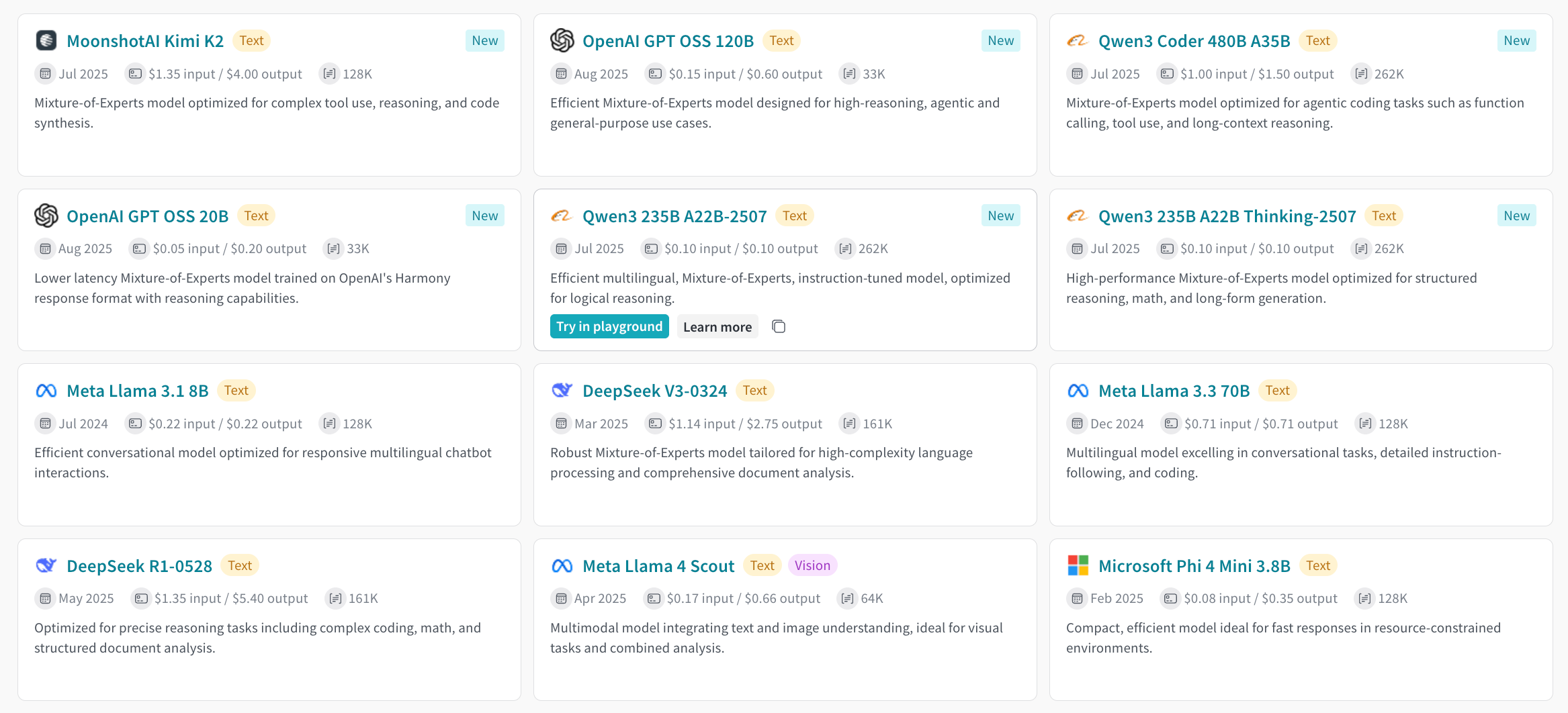
### Inference タブから
1. [https://wandb.ai/](https://wandb.ai/) から W\&B アカウントにアクセスします。
2. 左側のサイドバーから **Inference** を選択します。
3. 利用可能な Models とその情報が表示されます。
 ### Playground タブから
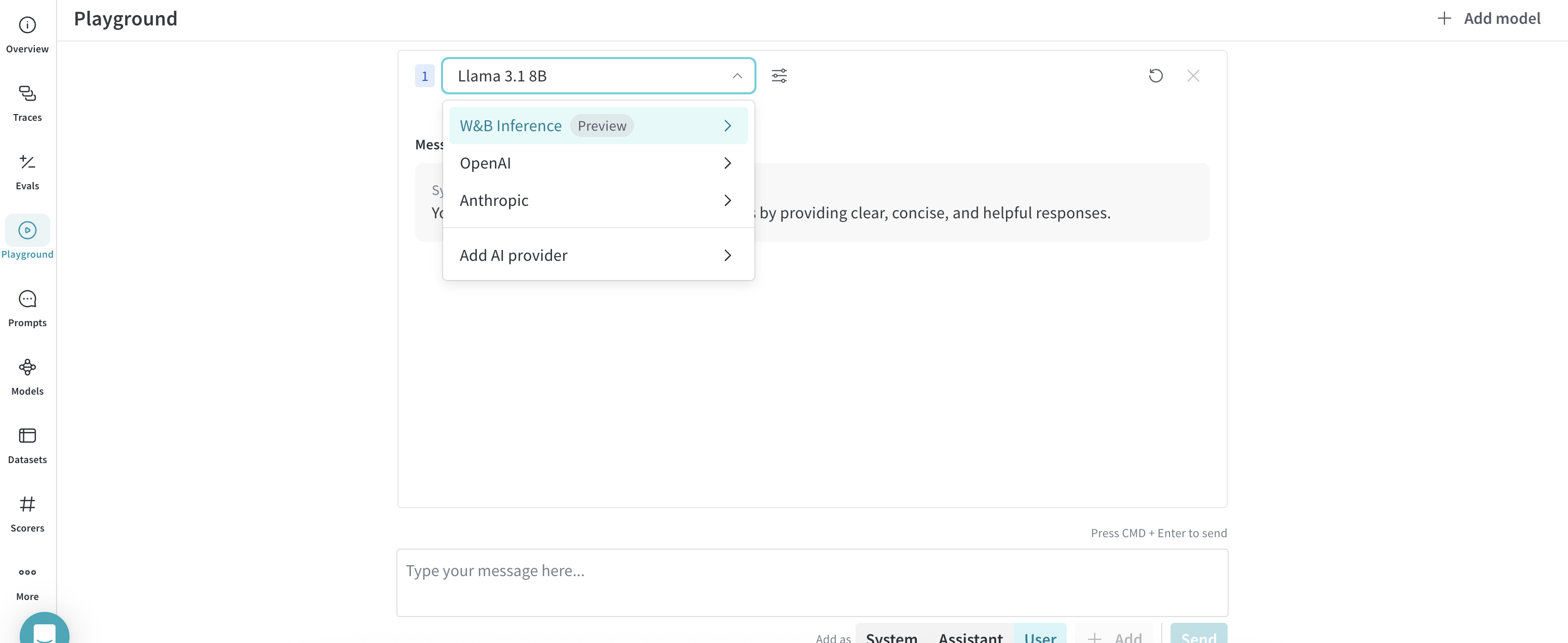
1. 左側のサイドバーから **Playground** を選択します。Playground のチャット UI が表示されます。
2. LLM ドロップダウンリストの **W\&B Inference** にカーソルを合わせます。右側に利用可能な Models のドロップダウンが表示されます。
3. Models のドロップダウンから、以下の操作が可能です。
* モデル名をクリックして [Playground で試す](#try-a-model-in-the-playground)
* [複数のモデルを比較する](#compare-multiple-models)
### Playground タブから
1. 左側のサイドバーから **Playground** を選択します。Playground のチャット UI が表示されます。
2. LLM ドロップダウンリストの **W\&B Inference** にカーソルを合わせます。右側に利用可能な Models のドロップダウンが表示されます。
3. Models のドロップダウンから、以下の操作が可能です。
* モデル名をクリックして [Playground で試す](#try-a-model-in-the-playground)
* [複数のモデルを比較する](#compare-multiple-models)
 ## Playground でモデルを試す
[モデルを選択](#access-the-inference-service) した後、Playground でテストできます。利用可能なアクションは以下の通りです。
* [モデルの設定とパラメータのカスタマイズ](/weave/guides/tools/playground#customize-settings)
* [メッセージの追加、再試行、編集、削除](/weave/guides/tools/playground#message-controls)
* [カスタム設定を適用したモデルの保存と再利用](/weave/guides/tools/playground#saved-models)
* [複数のモデルを比較する](#compare-multiple-models)
## 複数のモデルを比較する
Playground では、Inference モデルを横に並べて比較できます。比較(Compare)ビューには 2 つの場所からアクセスできます。
### Inference タブから
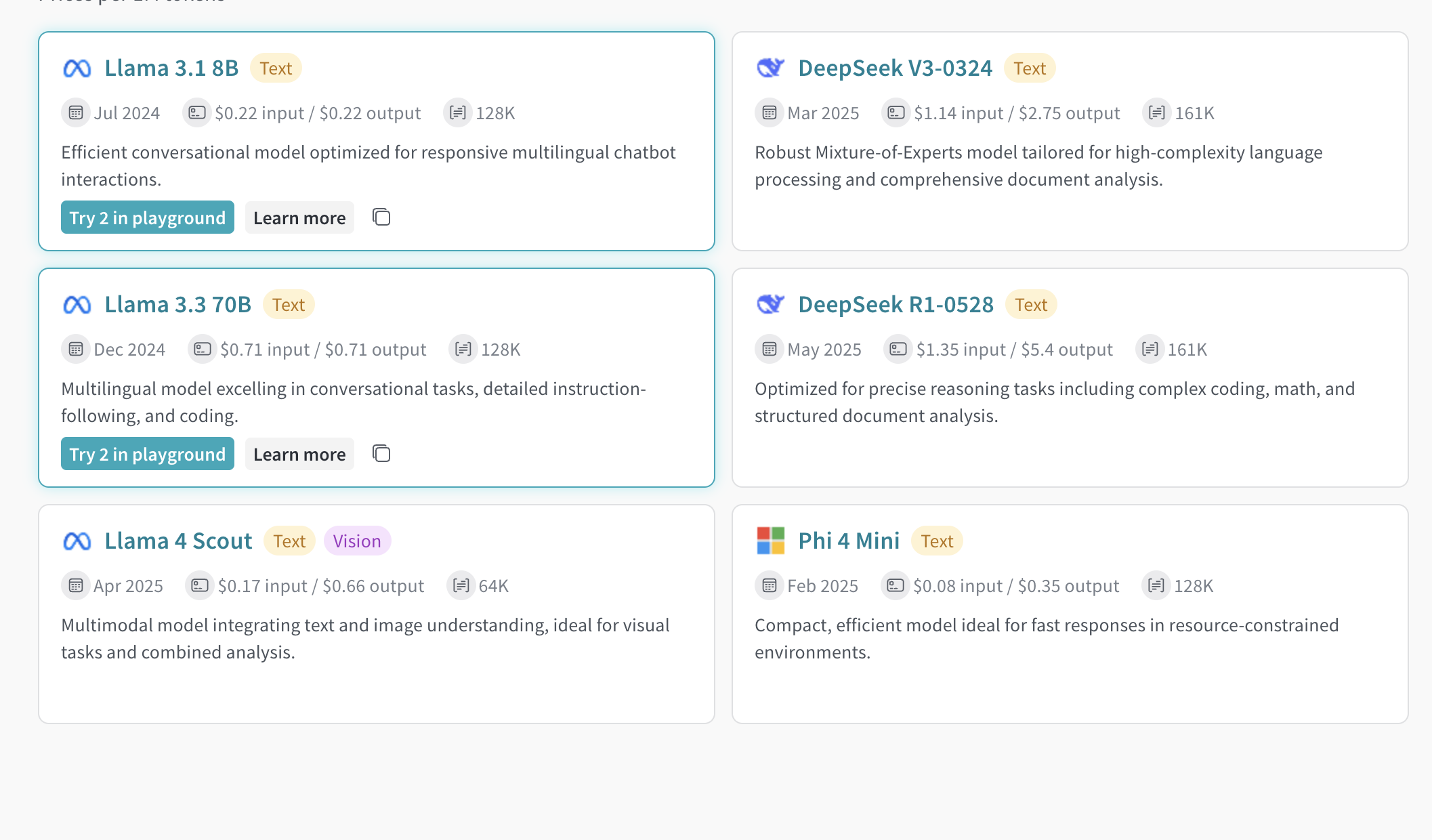
1. 左側のサイドバーから **Inference** を選択します。利用可能なモデルのページが表示されます。
2. モデルカードの任意の位置(モデル名以外)をクリックして選択します。カードの枠線が青色に変わります。
3. 比較したい各モデルに対してこれを繰り返します。
4. 選択したカードにある **Compare N models in the Playground** をクリックします。`N` には選択されたモデル数が表示されます。
5. 比較ビューが開きます。
これで、モデルを比較したり、[Playground でモデルを試す](#try-a-model-in-the-playground) のすべての機能を使用したりできます。
## Playground でモデルを試す
[モデルを選択](#access-the-inference-service) した後、Playground でテストできます。利用可能なアクションは以下の通りです。
* [モデルの設定とパラメータのカスタマイズ](/weave/guides/tools/playground#customize-settings)
* [メッセージの追加、再試行、編集、削除](/weave/guides/tools/playground#message-controls)
* [カスタム設定を適用したモデルの保存と再利用](/weave/guides/tools/playground#saved-models)
* [複数のモデルを比較する](#compare-multiple-models)
## 複数のモデルを比較する
Playground では、Inference モデルを横に並べて比較できます。比較(Compare)ビューには 2 つの場所からアクセスできます。
### Inference タブから
1. 左側のサイドバーから **Inference** を選択します。利用可能なモデルのページが表示されます。
2. モデルカードの任意の位置(モデル名以外)をクリックして選択します。カードの枠線が青色に変わります。
3. 比較したい各モデルに対してこれを繰り返します。
4. 選択したカードにある **Compare N models in the Playground** をクリックします。`N` には選択されたモデル数が表示されます。
5. 比較ビューが開きます。
これで、モデルを比較したり、[Playground でモデルを試す](#try-a-model-in-the-playground) のすべての機能を使用したりできます。
 ### Playground タブから
1. 左側のサイドバーから **Playground** を選択します。Playground のチャット UI が表示されます。
2. LLM ドロップダウンリストの **W\&B Inference** にカーソルを合わせます。右側に Models のドロップダウンが表示されます。
3. ドロップダウンから **Compare** を選択します。**Inference** タブが表示されます。
4. モデルカードの任意の位置(モデル名以外)をクリックして選択します。カードの枠線が青色に変わります。
5. 比較したい各モデルに対してこれを繰り返します。
6. 選択したカードにある **Compare N models in the Playground** をクリックします。比較ビューが開きます。
これで、モデルを比較したり、[Playground でモデルを試す](#try-a-model-in-the-playground) のすべての機能を使用したりできます。
## 請求と使用状況の情報を確認する
組織(Organization)の管理者は、W\&B UI からクレジット残高、使用履歴、次回の請求額を確認できます。
1. W\&B UI の **Billing** ページに移動します。
2. 右下にある Inference 請求情報のカードを確認します。
3. ここから以下の操作が可能です。
* **View usage** をクリックして、時系列での使用状況を確認する
* 次回の Inference 請求額を確認する(有料プランの場合)
モデルごとの料金詳細については、[Inference 価格ページ](https://wandb.ai/site/pricing/inference) をご覧ください。
## 次のステップ
* [利用可能な Models](/inference/models) を確認して、ニーズに最適なものを見つける
* プログラムからアクセスするために [API](/inference/api-reference/) を試す
* コードサンプルについて [使用例](/inference/examples/) を参照する
### Playground タブから
1. 左側のサイドバーから **Playground** を選択します。Playground のチャット UI が表示されます。
2. LLM ドロップダウンリストの **W\&B Inference** にカーソルを合わせます。右側に Models のドロップダウンが表示されます。
3. ドロップダウンから **Compare** を選択します。**Inference** タブが表示されます。
4. モデルカードの任意の位置(モデル名以外)をクリックして選択します。カードの枠線が青色に変わります。
5. 比較したい各モデルに対してこれを繰り返します。
6. 選択したカードにある **Compare N models in the Playground** をクリックします。比較ビューが開きます。
これで、モデルを比較したり、[Playground でモデルを試す](#try-a-model-in-the-playground) のすべての機能を使用したりできます。
## 請求と使用状況の情報を確認する
組織(Organization)の管理者は、W\&B UI からクレジット残高、使用履歴、次回の請求額を確認できます。
1. W\&B UI の **Billing** ページに移動します。
2. 右下にある Inference 請求情報のカードを確認します。
3. ここから以下の操作が可能です。
* **View usage** をクリックして、時系列での使用状況を確認する
* 次回の Inference 請求額を確認する(有料プランの場合)
モデルごとの料金詳細については、[Inference 価格ページ](https://wandb.ai/site/pricing/inference) をご覧ください。
## 次のステップ
* [利用可能な Models](/inference/models) を確認して、ニーズに最適なものを見つける
* プログラムからアクセスするために [API](/inference/api-reference/) を試す
* コードサンプルについて [使用例](/inference/examples/) を参照する