> ## Documentation Index
> Fetch the complete documentation index at: https://wb-21fd5541-serverless-sft-revamp.mintlify.site/llms.txt
> Use this file to discover all available pages before exploring further.
# start_thought
UI 가이드
> 웹 인터페이스를 통해 W&B Inference 모델 에 엑세스 하세요
웹 UI를 통해 W\&B Inference 서비스를 사용하는 방법을 알아보세요. UI를 사용하기 전에 [사전 요구 사항](/inference/prerequisites/)을 완료해야 합니다.
## Inference 서비스 엑세스
세 가지 경로를 통해 Inference 서비스에 엑세스할 수 있습니다:
### 직접 링크
[https://wandb.ai/inference](https://wandb.ai/inference)로 이동합니다.
### Inference 탭에서 엑세스
1. [https://wandb.ai/](https://wandb.ai/)에서 W\&B 계정으로 이동합니다.
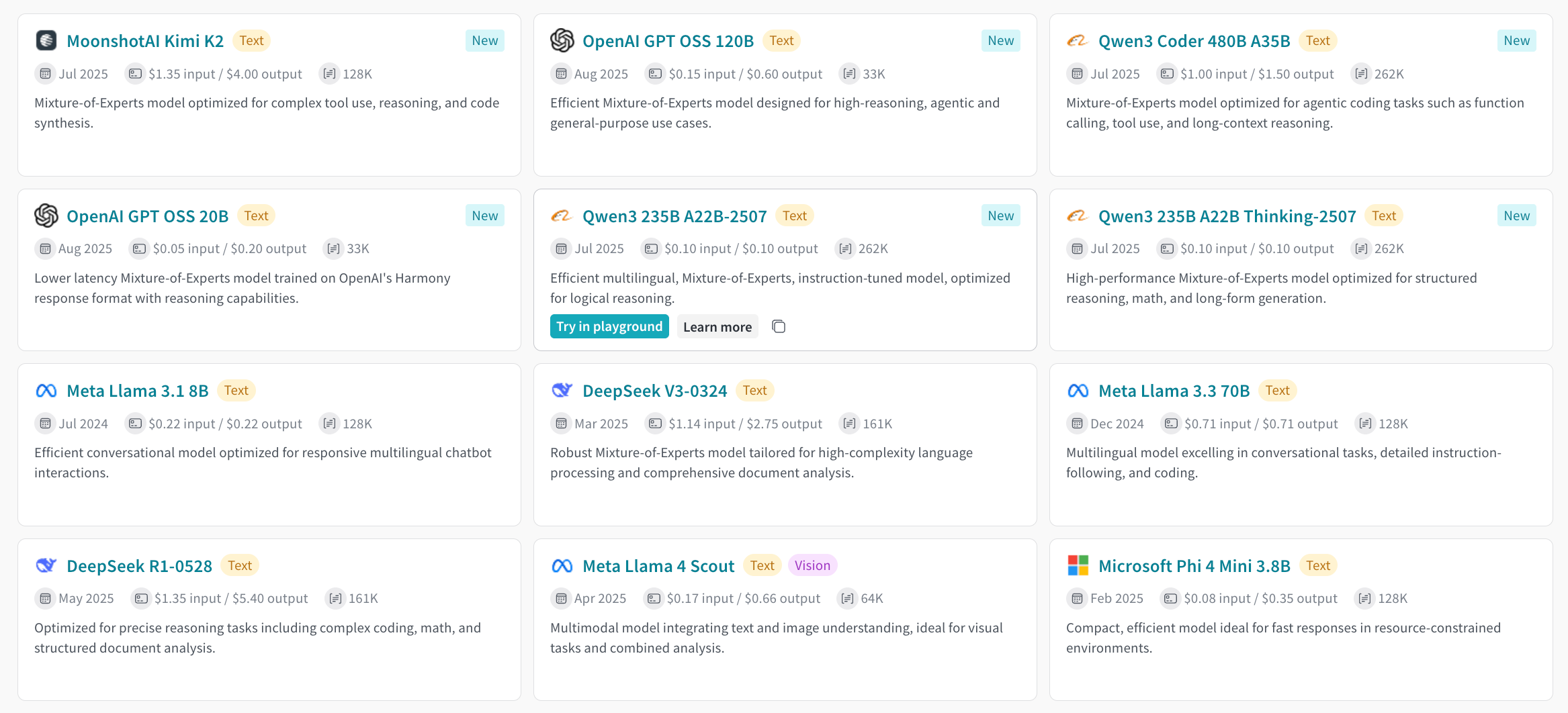
2. 왼쪽 사이드바에서 **Inference**를 선택합니다.
3. 사용 가능한 Models와 모델 정보가 표시된 페이지가 나타납니다.
 ### Playground 탭에서 엑세스
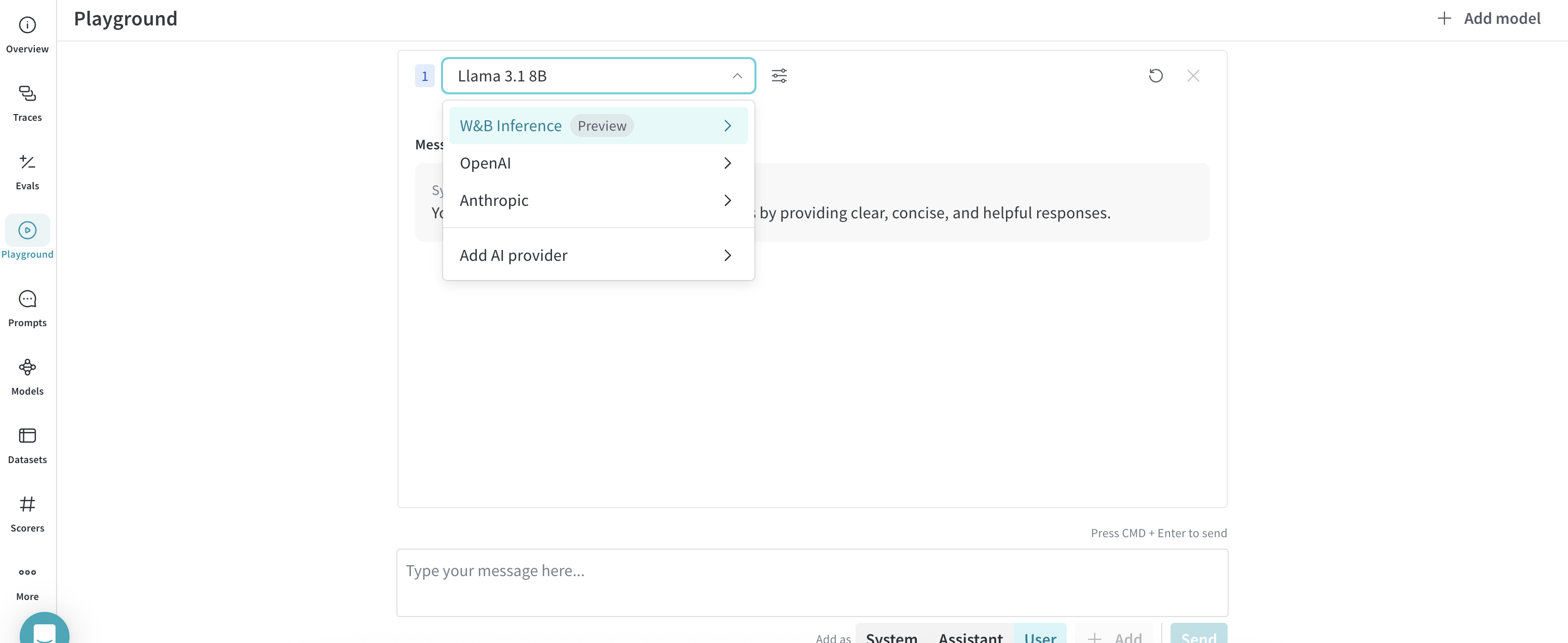
1. 왼쪽 사이드바에서 **Playground**를 선택합니다. Playground 채팅 UI가 나타납니다.
2. LLM 드롭다운 리스트에서 **W\&B Inference** 위에 마우스를 올립니다. 오른쪽에 사용 가능한 Models 드롭다운이 나타납니다.
3. Models 드롭다운에서 다음 작업을 수행할 수 있습니다:
* 모델 이름을 클릭하여 [Playground에서 체험하기](#try-a-model-in-the-playground)
* [여러 모델 비교하기](#compare-multiple-models)
### Playground 탭에서 엑세스
1. 왼쪽 사이드바에서 **Playground**를 선택합니다. Playground 채팅 UI가 나타납니다.
2. LLM 드롭다운 리스트에서 **W\&B Inference** 위에 마우스를 올립니다. 오른쪽에 사용 가능한 Models 드롭다운이 나타납니다.
3. Models 드롭다운에서 다음 작업을 수행할 수 있습니다:
* 모델 이름을 클릭하여 [Playground에서 체험하기](#try-a-model-in-the-playground)
* [여러 모델 비교하기](#compare-multiple-models)
 ## Playground에서 모델 체험하기
[모델을 선택](#access-the-inference-service)한 후, Playground에서 테스트할 수 있습니다. 가능한 작업은 다음과 같습니다:
* [모델 settings 및 parameter 커스터마이징](/weave/guides/tools/playground#customize-settings)
* [메시지 추가, 재시도, 편집 및 삭제](/weave/guides/tools/playground#message-controls)
* [커스텀 설정이 적용된 모델 저장 및 재사용](/weave/guides/tools/playground#saved-models)
* [여러 모델 비교하기](#compare-multiple-models)
## 여러 모델 비교하기
Playground에서 Inference Models를 나란히 비교할 수 있습니다. 다음 두 곳에서 비교 뷰에 엑세스할 수 있습니다:
### Inference 탭에서 엑세스
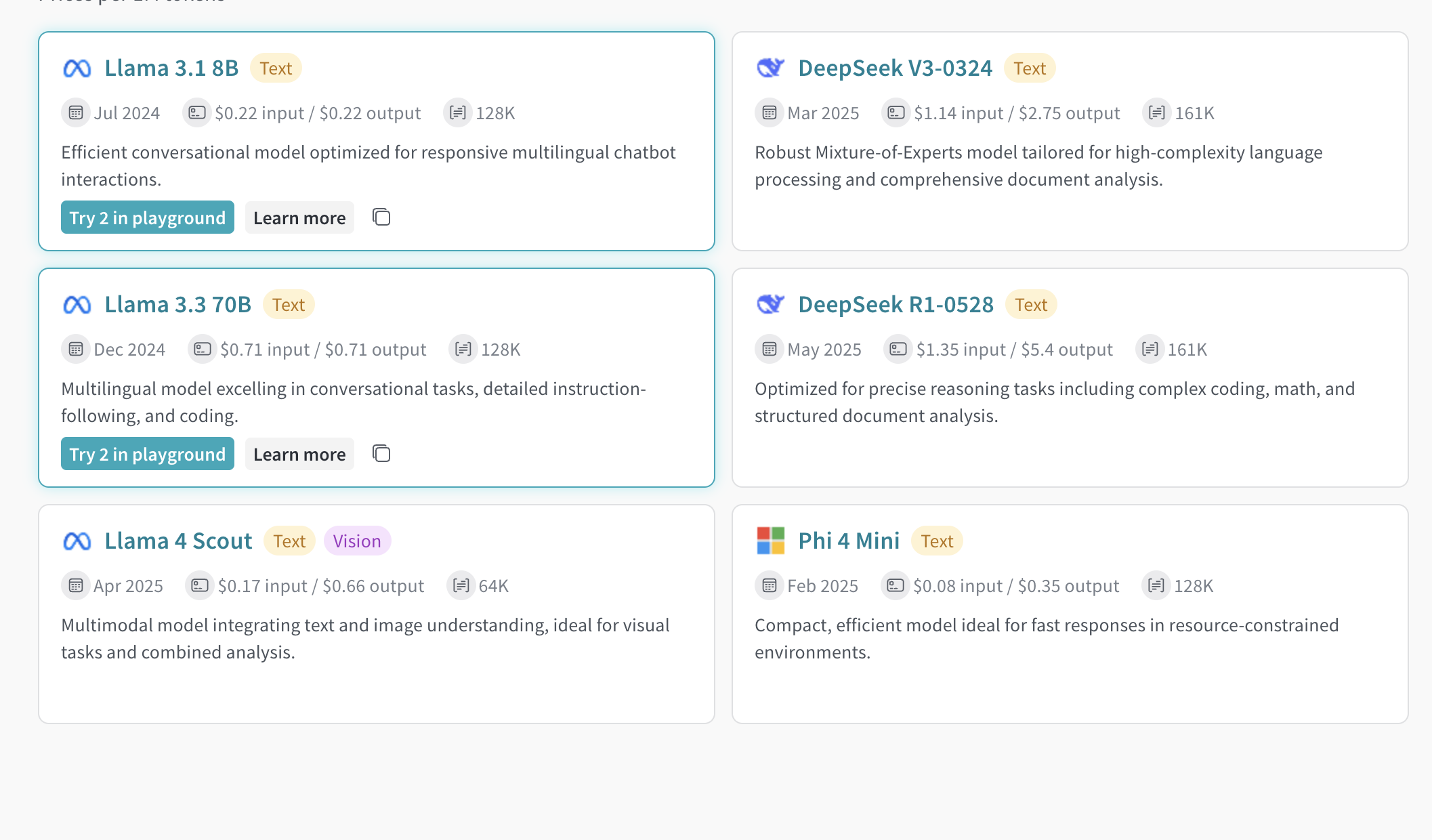
1. 왼쪽 사이드바에서 **Inference**를 선택합니다. 사용 가능한 모델 페이지가 나타납니다.
2. 모델 카드의 아무 곳이나(모델 이름 제외) 클릭하여 선택합니다. 카드의 테두리가 파란색으로 변합니다.
3. 비교하려는 각 모델에 대해 이 과정을 반복합니다.
4. 선택된 카드에서 **Compare N models in the Playground**를 클릭합니다. `N`은 선택된 모델의 수를 나타냅니다.
5. 비교 뷰가 열립니다.
이제 모델을 비교하고 [Playground에서 모델 체험하기](#try-a-model-in-the-playground)의 모든 기능을 사용할 수 있습니다.
## Playground에서 모델 체험하기
[모델을 선택](#access-the-inference-service)한 후, Playground에서 테스트할 수 있습니다. 가능한 작업은 다음과 같습니다:
* [모델 settings 및 parameter 커스터마이징](/weave/guides/tools/playground#customize-settings)
* [메시지 추가, 재시도, 편집 및 삭제](/weave/guides/tools/playground#message-controls)
* [커스텀 설정이 적용된 모델 저장 및 재사용](/weave/guides/tools/playground#saved-models)
* [여러 모델 비교하기](#compare-multiple-models)
## 여러 모델 비교하기
Playground에서 Inference Models를 나란히 비교할 수 있습니다. 다음 두 곳에서 비교 뷰에 엑세스할 수 있습니다:
### Inference 탭에서 엑세스
1. 왼쪽 사이드바에서 **Inference**를 선택합니다. 사용 가능한 모델 페이지가 나타납니다.
2. 모델 카드의 아무 곳이나(모델 이름 제외) 클릭하여 선택합니다. 카드의 테두리가 파란색으로 변합니다.
3. 비교하려는 각 모델에 대해 이 과정을 반복합니다.
4. 선택된 카드에서 **Compare N models in the Playground**를 클릭합니다. `N`은 선택된 모델의 수를 나타냅니다.
5. 비교 뷰가 열립니다.
이제 모델을 비교하고 [Playground에서 모델 체험하기](#try-a-model-in-the-playground)의 모든 기능을 사용할 수 있습니다.
 ### Playground 탭에서 엑세스
1. 왼쪽 사이드바에서 **Playground**를 선택합니다. Playground 채팅 UI가 나타납니다.
2. LLM 드롭다운 리스트에서 **W\&B Inference** 위에 마우스를 올립니다. 오른쪽에 모델 드롭다운이 나타납니다.
3. 드롭다운에서 **Compare**를 선택합니다. **Inference** 탭이 나타납니다.
4. 모델 카드의 아무 곳이나(모델 이름 제외) 클릭하여 선택합니다. 카드의 테두리가 파란색으로 변합니다.
5. 비교하려는 각 모델에 대해 이 과정을 반복합니다.
6. 선택된 카드에서 **Compare N models in the Playground**를 클릭합니다. 비교 뷰가 열립니다.
이제 모델을 비교하고 [Playground에서 모델 체험하기](#try-a-model-in-the-playground)의 모든 기능을 사용할 수 있습니다.
## 결제 및 사용량 정보 확인
Organization 관리자는 W\&B UI에서 크레딧 잔액, 사용 기록 및 예정된 청구 금액을 확인할 수 있습니다:
1. UI에서 W\&B **Billing** 페이지로 이동합니다.
2. 오른쪽 하단에서 Inference 결제 정보 카드를 찾습니다.
3. 여기에서 다음을 수행할 수 있습니다:
* **View usage**를 클릭하여 시간 경과에 따른 사용량 확인
* 예정된 Inference 요금 확인 (유료 플랜의 경우)
모델별 가격에 대한 자세한 내용은 [Inference pricing 페이지](https://wandb.ai/site/pricing/inference)를 방문하세요.
## 다음 단계
* 필요에 가장 적합한 모델을 찾기 위해 [사용 가능한 Models](/inference/models)를 검토하세요.
* 프로그래밍 방식의 엑세스를 위해 [API](/inference/api-reference/)를 사용해 보세요.
* 코드 샘플은 [사용 예시](/inference/examples/)를 참조하세요.
### Playground 탭에서 엑세스
1. 왼쪽 사이드바에서 **Playground**를 선택합니다. Playground 채팅 UI가 나타납니다.
2. LLM 드롭다운 리스트에서 **W\&B Inference** 위에 마우스를 올립니다. 오른쪽에 모델 드롭다운이 나타납니다.
3. 드롭다운에서 **Compare**를 선택합니다. **Inference** 탭이 나타납니다.
4. 모델 카드의 아무 곳이나(모델 이름 제외) 클릭하여 선택합니다. 카드의 테두리가 파란색으로 변합니다.
5. 비교하려는 각 모델에 대해 이 과정을 반복합니다.
6. 선택된 카드에서 **Compare N models in the Playground**를 클릭합니다. 비교 뷰가 열립니다.
이제 모델을 비교하고 [Playground에서 모델 체험하기](#try-a-model-in-the-playground)의 모든 기능을 사용할 수 있습니다.
## 결제 및 사용량 정보 확인
Organization 관리자는 W\&B UI에서 크레딧 잔액, 사용 기록 및 예정된 청구 금액을 확인할 수 있습니다:
1. UI에서 W\&B **Billing** 페이지로 이동합니다.
2. 오른쪽 하단에서 Inference 결제 정보 카드를 찾습니다.
3. 여기에서 다음을 수행할 수 있습니다:
* **View usage**를 클릭하여 시간 경과에 따른 사용량 확인
* 예정된 Inference 요금 확인 (유료 플랜의 경우)
모델별 가격에 대한 자세한 내용은 [Inference pricing 페이지](https://wandb.ai/site/pricing/inference)를 방문하세요.
## 다음 단계
* 필요에 가장 적합한 모델을 찾기 위해 [사용 가능한 Models](/inference/models)를 검토하세요.
* 프로그래밍 방식의 엑세스를 위해 [API](/inference/api-reference/)를 사용해 보세요.
* 코드 샘플은 [사용 예시](/inference/examples/)를 참조하세요.