Platform
 W&B Models
 W&B Weave
 W&B Inference
 W&B Training
 Release Notes
How to create a monitor in Weave
To create a monitor in Weave:- Open the W&B UI and then open your Weave project.
- From the Weave side-nav, select Monitors and then select the + New Monitor button. This opens the Create new monitor modal dialog.
-
In the Create new monitor menu, configure the following fields:
- Name: Must start with a letter or number. Can contain letters, numbers, hyphens, and underscores.
- Description (Optional): Explain what the monitor does.
- Active monitor toggle: Turn the monitor on or off.
- Calls to monitor:
- Operations: Choose one or more
@weave.ops to monitor. You must log at least one trace that uses the op before it appears in the list of available ops. - Filter (Optional): Narrow down which calls are eligible (for example, by
max_tokensortop_p). - Sampling rate: The percentage of calls to score (0% to 100%).
- Operations: Choose one or more
- LLM-as-a-judge configuration:
- Scorer name: Must start with a letter or number. Can contain letters, numbers, hyphens, and underscores.
- Score Audio: Filters the available LLM models to display only audio-enabled models, and opens the Media Scoring JSON Paths field.
- Score Images: Filters the available LLM models to display only image-enabled models, and opens the Media Scoring JSON Paths field.
- Judge model: Select the model to score your ops. The menu contains commercial LLM models you have configured in your W&B account, as well as W&B Inference models. Audio-enabled models have an Audio Input label beside their names. For the selected model, configure the following settings:
- Configuration name: A name for this model configuration.
- System prompt: Defines the judging model’s role and persona, for example, “You are an impartial AI judge.”
- Response format: The format the judge should output its response in, such as a
json_objector plaintext. - Scoring prompt: The evaluation task used to score your ops. You can reference prompt variables from your ops in your scoring prompts. For example, “Evaluate whether
{output}is accurate based on{ground_truth}.”
- Media Scoring JSON Paths: Specify JSONPath expressions (RFC 9535) to extract media from your trace data. If no paths are specified, all scorable media from user messages will be included. This field appears when you enable Score Audio or Score Images.
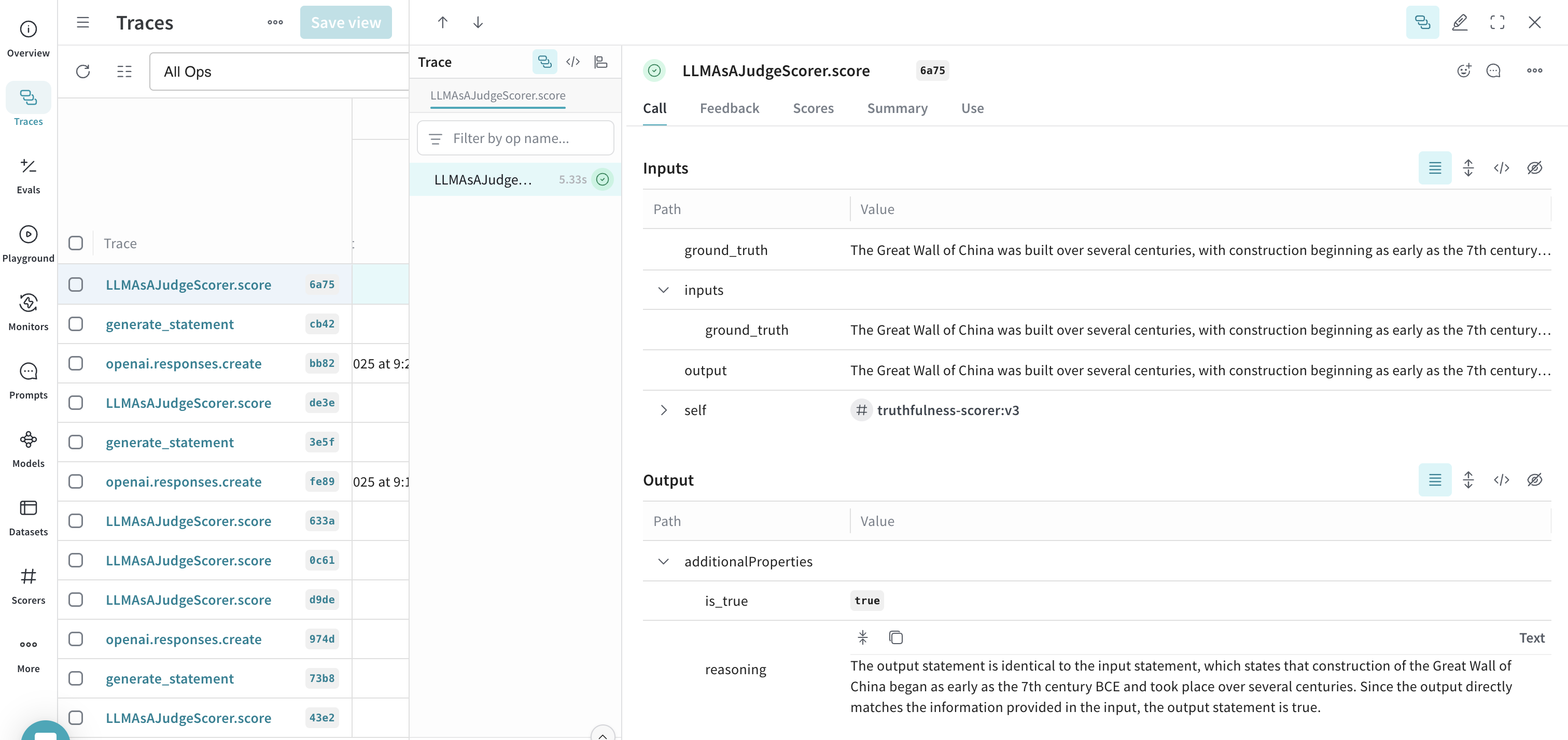
- Once you have configured the monitor’s fields, click Create monitor. This adds the monitor to your Weave project. When your code starts generating traces, you can review the scores in the Traces tab by selecting the monitor’s name and reviewing the data in the resulting panel.
feedback field.
Example: Create a truthfulness monitor
The following example creates a monitor that evaluates the truthfulness of generated statements.- Define a function that generates statements. Some statements are truthful, others are not:
- Python
- TypeScript
- Run the function at least once to log a trace in your project. This makes the op available for monitoring in the W&B UI.
- Open your Weave project in the W&B UI and select Monitors from the side-nav. Then select New Monitor.
-
In the Create new monitor menu, configure the fields using the following values:
- Name:
truthfulness-monitor - Description:
Evaluates the truthfulness of generated statements. - Active monitor: Toggle on.
- Operations: Select
generate_statement. - Sampling rate: Set to
100%to score every call. - Scorer name:
truthfulness-scorer - Judge model:
o3-mini-2025-01-31 - System prompt:
You are an impartial AI judge. Your task is to evaluate the truthfulness of statements. - Response format:
json_object - Scoring prompt:
- Name:
- Click Create Monitor. This adds the monitor to your Weave project.
- In your script, invoke your function using statements of varying degrees of truthfulness to test the scoring function:
- Python
- TypeScript
- After running the script using several different statements, open the W&B UI and navigate to the Traces tab. Select any LLMAsAJudgeScorer.score trace to see the results.